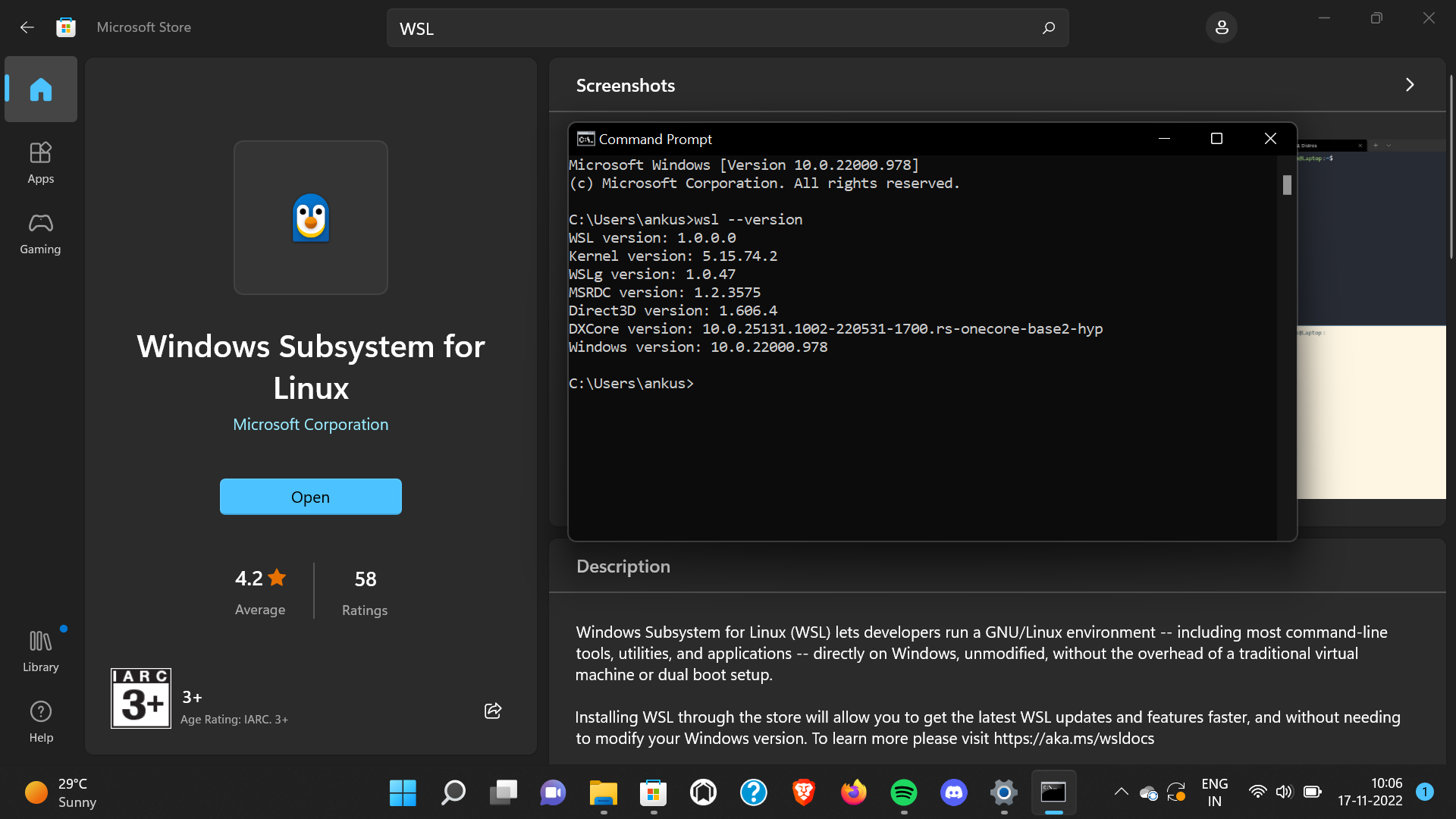
Are you a developer or power user looking to leverage the best of both worlds - the familiarity of Windows and the versatility of Linux? Look no further than the Windows Subsystem for Linux (WSL), a groundbreaking feature from Microsoft that brings the Linux operating system directly into the Windows environment. In this article, we'll explore what WSL is, its benefits, and how to get started with this powerful tool.
What is Windows Subsystem for Linux?
The Windows Subsystem for Linux is a compatibility layer that allows you to run a Linux distribution alongside your Windows installation. It enables you to execute Linux commands, run Linux applications, and access Linux files from within Windows, without the need for a virtual machine or dual-boot setup. WSL provides a seamless integration of Linux into the Windows ecosystem, making it an attractive option for developers, sysadmins, and power users who require access to both operating systems.
Benefits of Windows Subsystem for Linux
So, why should you consider using WSL? Here are some compelling benefits:
Improved productivity: With WSL, you can work on Linux-based projects directly from Windows, eliminating the need to switch between operating systems or set up a virtual machine.
Enhanced development experience: WSL provides a native Linux environment, allowing you to develop, test, and debug Linux applications on Windows.
Access to Linux tools and utilities: WSL gives you access to a wide range of Linux tools and utilities, such as Git, SSH, and Vim, which can be used directly from Windows.
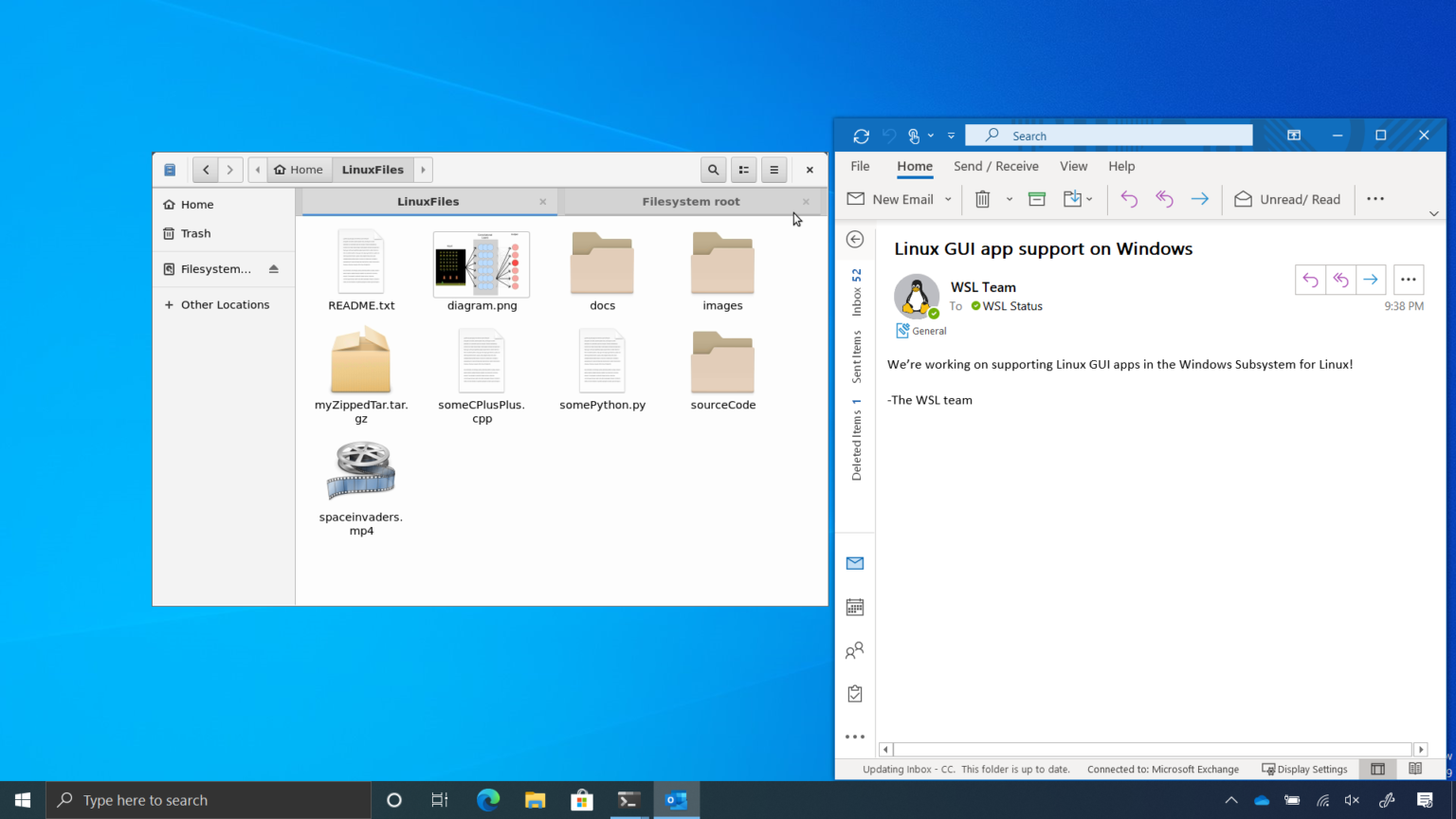
Seamless integration: WSL integrates perfectly with Windows, allowing you to access Linux files from Windows File Explorer, and launch Linux applications from the Start menu.
Getting Started with Windows Subsystem for Linux
To start using WSL, follow these simple steps:
1.
Check your Windows version: Ensure you're running Windows 10 or later, with the Fall Creators Update (version 1709) or later.
2.
Enable WSL: Open the Windows Features window, scroll down, and check the box next to "Windows Subsystem for Linux".
3.
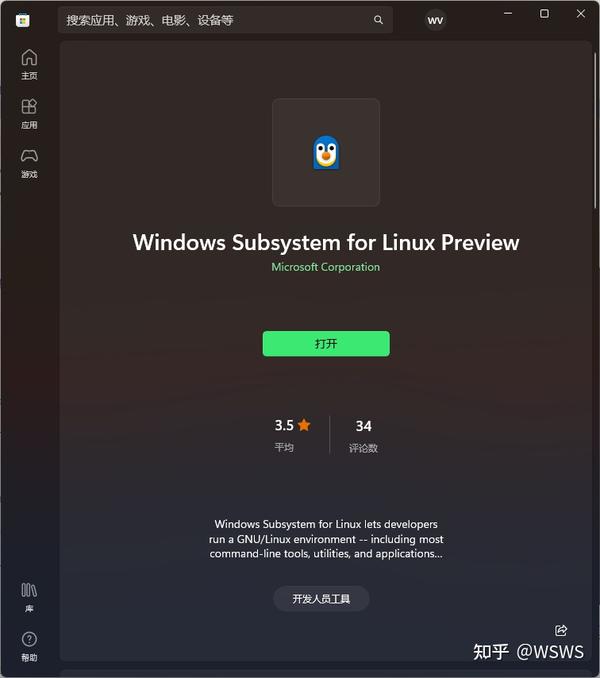
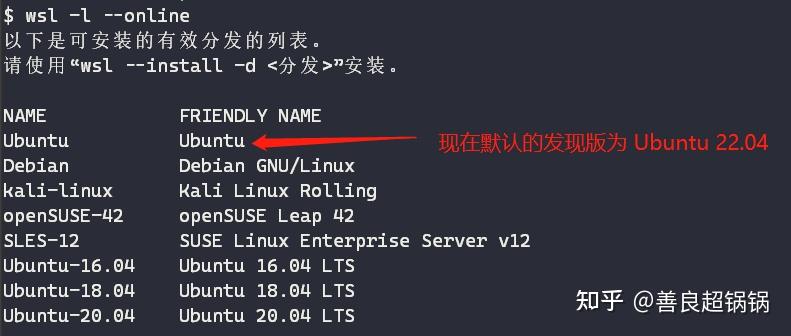
Install a Linux distribution: Open the Microsoft Store, search for "Linux", and select a distribution (such as Ubuntu, Debian, or Kali Linux).
4.
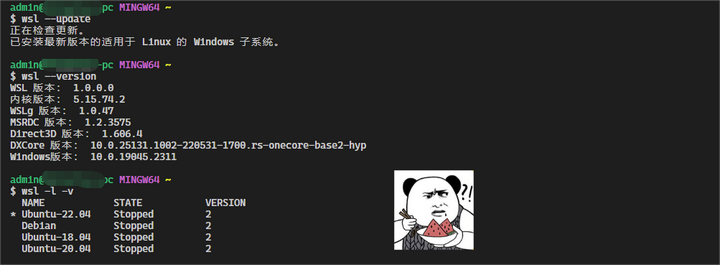
Launch WSL: Once installed, launch the Linux distribution from the Start menu, and follow the prompts to set up your Linux environment.
The Windows Subsystem for Linux is a powerful tool that brings the best of both worlds to your desktop. By providing a native Linux environment within Windows, WSL unlocks new possibilities for developers, sysadmins, and power users. Whether you're looking to improve your productivity, enhance your development experience, or simply access Linux tools and utilities, WSL is definitely worth exploring. So, what are you waiting for? Dive into the world of WSL today and discover a new way to work with Linux on Windows.
For more information on Windows Subsystem for Linux, visit the
Microsoft Learn platform, which offers a wealth of tutorials, guides, and resources to help you get started with WSL.